Analyzing Data
During the Planning Research stage, a Project folder for storing research data is not yet available. Therefore, when dealing with any data (real or simulated) during the Planning Research stage, you will most often want to store it in your Home Drive. This is because, since the Home Drive is mounted on High Performance Storage, you will be able to work with the HPC Cluster which can speed up your analysis time. Otherwise, you would use the local storage on your DCCN-issued PC.
Note
It is essential that data generated in the Planning Research stage that is eventually relevant for the project is moved to the Project folder once this is created after PPM approval.
Let’s see how we would download existing data. Below, we will show three examples of downloading existing data from the RDR or an External Repository.
Closed Access Collection with Repocli
Once you have been added to a collection, you will receive an email to the email account you used when you signed up to the Radboud Data Repository stating that you have been added. Workshop attendees will be added to our workshop’s DAC in the RDR which is Closed Access Others can access our workshop’s Open Access DSC in the Radboud Data Repository to do this exercise. We will practice downloading this DSC onto your Home Drive (replace groupname with your lab group’s name and firlas with your DCCN username)
Establish a Network Connection to Trigon (either eduVPN or hardwired)
Log in on the Radboud Data Repostory
Go to https://data.ru.nl/ and click
LOG IN
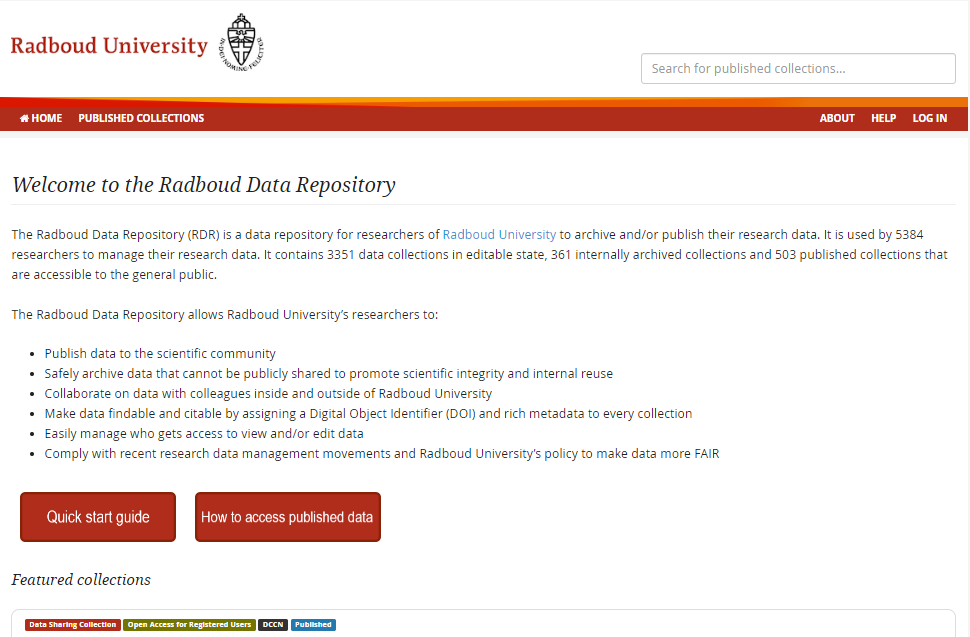
Click
Login with your SURFconext account
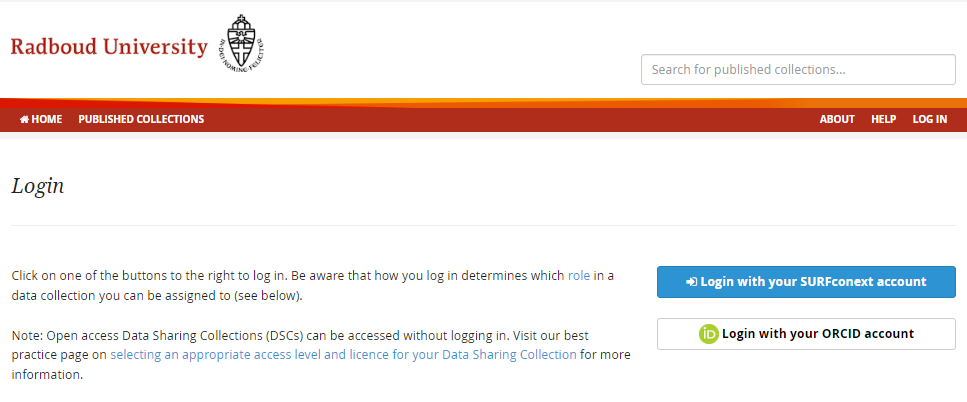
Login with the USEZ credentials of the account that has been added to the our workshop’s DAC
After loggin in, click on the dropdown with your name, then click
Data access credentials
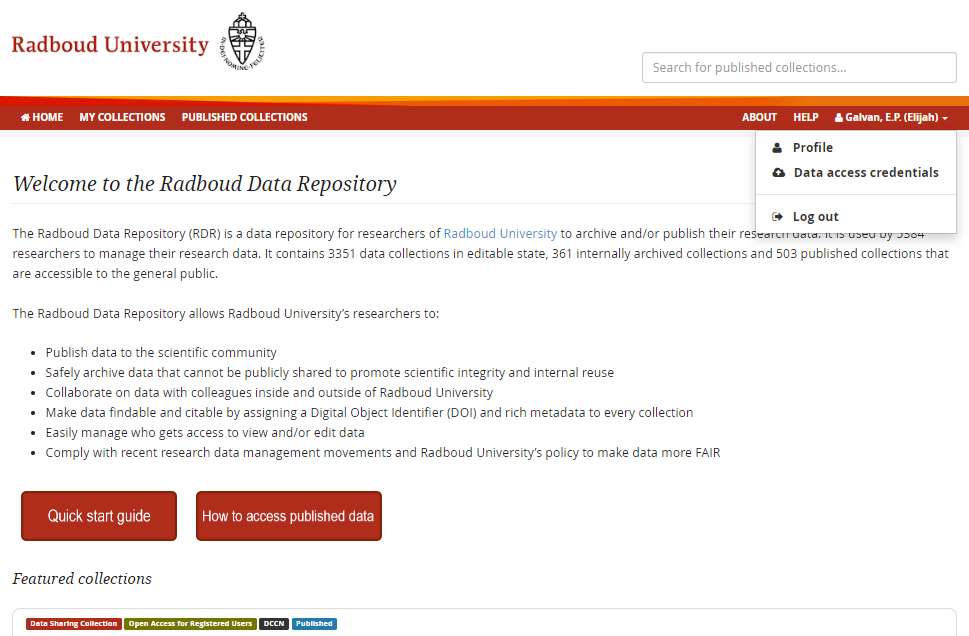
Click the button to copy the password and leave this page open while you do other excercises
Open a TigerVNC session (read how to do that here)
Login to the Radboud Data Repository
Open TigerVNC
Open the terminal application
Type
repocli shelland then pushenterType
configand then pushenterEnter your RU username (u1234567@ru.nl) and then push
enterEnter the RDR password you retreived in step 2, then push
enter
Download the Data Sharing Collection to Your Home Directory
Type
get dccn/DAC_3010000.05_873 /home/groupname/firlasfor workshop attendeesType
get dccn/DSC_3010000.05_519 /home/groupname/firlasfor non-workshop attendees
Public Collection with Cyberduck
Establish a Network Connection to Trigon (either eduVPN or hardwired)
Login to the Radboud Data Repository
Open Cyberduck
Click
Open Connectionat the top left of the windowClick on the dropdown menu (which defaults to
File Transfer Protocol (FTP)) and selectWebDAV (HTTPS)At the
Server:field type indata.ru.nlClick the box next to
Anonymous Loginand then clickConnectat the bottom right side of the window
Download the Data Sharing Collection to Your Folder of Choice
Double click on the
dccndirectorySingle click on the
DSC_3010000.11_518_v1directoryLocate and click on
Actionat the top of the window and then selectDownload Toon the dropdown menuSelect the folder you want to download the data to and then push
OkSelect the disconnect button at the top right of the window
Other Repositories with Cyberduck
Let’s say you have found a data collection you want to analyze on OpenNeuro called Demo. Before you can go about downloading it with Cyberduck or Repocli, you must determine which protocol you must use to interact with the server. Below is a list of the Protocols required by some commonly used Open Access Repositories.
Repository |
OpenfMRI |
OpenNeuro |
OMEGA |
|---|---|---|---|
Protocol |
AWS |
AWS |
WebDAV |
Establish an AWS Connection to the OpenNeuro folder you want to download
Open Cyberduck and push
Open ConnectionClick on the dropdown menu which defaults to
FTP (File Transfer Protocol)and selectAmazon S3Click on the dropdown for more options and copy the domain name and the dataset number, seperated by a forward slash (i.e.
openneuro.org/ds004564) into thePath:fieldIn the
Access Key ID:field, typeanonymous
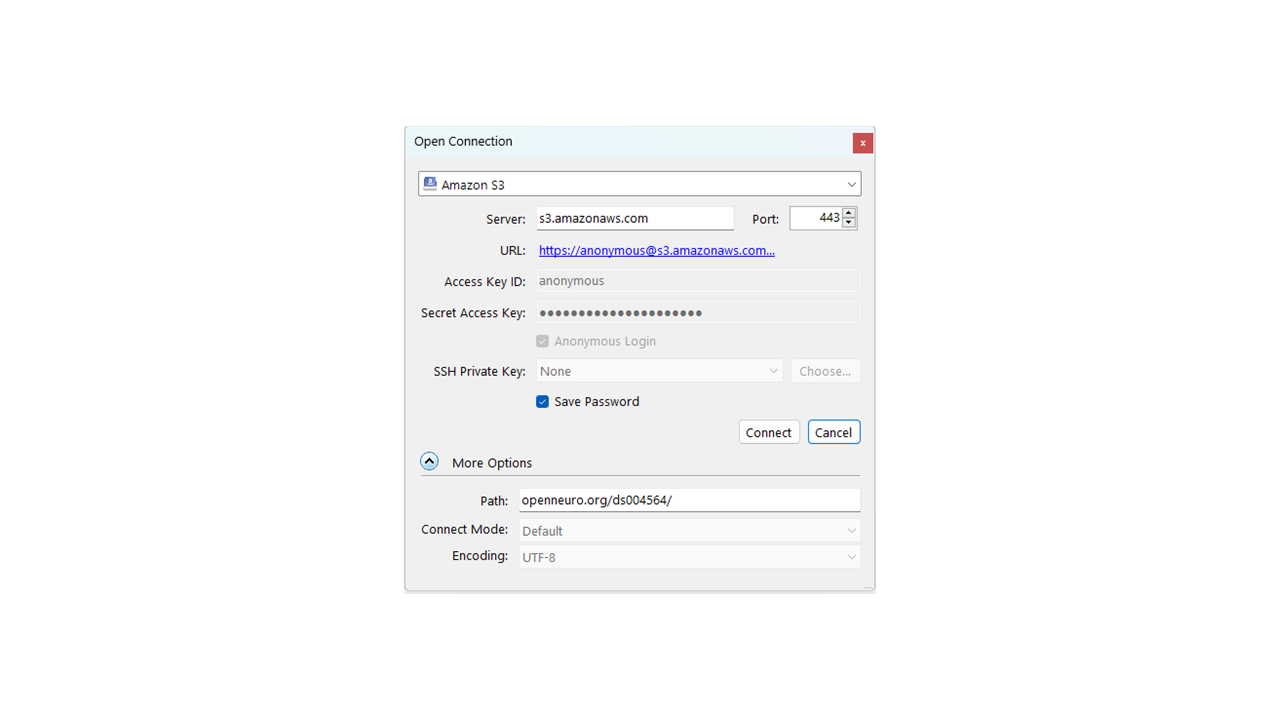
Click
connect
Download the fMRI data
Control-click the data you want to download (so the subject data folders and the
participants.tsvfile)Click
Actionand thenDownload Toin the dropdownSelect the directory you want to download the data to and then push
OK